
Introduction
With the release of VMware Cloud Foundation (VCF) 9.0, Broadcom is ushering in a new era of private cloud management. This latest platform version, designed for infrastructure administrators and architects, offers a unified and fully automated environment to build, deploy, and operate a private cloud infrastructure efficiently. In this article, based on official documentation and detailed screenshots, we will guide you through the complete installation process of VCF 9.0 in a “Greenfield” scenario—from scratch in a clean environment.
Architecture and Key Components of VCF 9.0
Before we proceed with the installation, it’s worth understanding what we are deploying. VCF 9.0 is an integrated software stack that automates the deployment and management of the entire Software-Defined Data Center (SDDC).
- VCF Fleet: This logical construct includes an environment managed by the same VCF Operations instance. It can consist of multiple VCF instances and standalone vCenter servers.
- VCF Operations: The central administration console for managing and monitoring the entire infrastructure belonging to the VCF fleet. It provides a unified experience for managing lifecycle, identity, passwords, configuration, logs, and networking.
- VCF Automation: A component that enables flexible, self-service infrastructure consumption through governance-based management. It integrates capabilities such as region management, tenant management, an IaaS service catalog, and resource monitoring.
- VCF Instance: The core of the deployment, which provides compute, storage, and network resources to run business workloads. Each instance includes one Management Domain and can contain multiple Workload Domains.
- Management Domain: The first domain deployed in a VCF instance. It contains key management components like SDDC Manager, vCenter, and NSX Manager.
- Workload Domain: Domains deployed to handle business workloads after the VCF instance is deployed.
Stage 1: Login and First Steps in the VCF Installer
Our journey begins by logging into the newly deployed VCF Installer appliance. It replaces the Cloud Builder tool, which was known from previous versions.
After entering the credentials (by default, admin@local and the password set during the OVA deployment), we are greeted by the installer’s main screen.

The clean dashboard immediately directs us to two main tasks: managing binaries and starting the deployment. In our lab scenario, we have already ensured that all necessary installation packages have been downloaded, as shown on the “Download Binaries” card.

We also see that a previous deployment was completed successfully. This section would be empty for a new installation. We click the DEPLOYMENT WIZARD button to begin the configuration.
Stage 2: Choosing the Deployment Scenario
The wizard presents us with two fundamental options:
- Deploy a new VCF fleet: Create a completely new environment from scratch. This is our choice for the “Greenfield” scenario.
- Deploy a VCF Instance in an existing VCF fleet: Extend an existing fleet with another VCF instance.
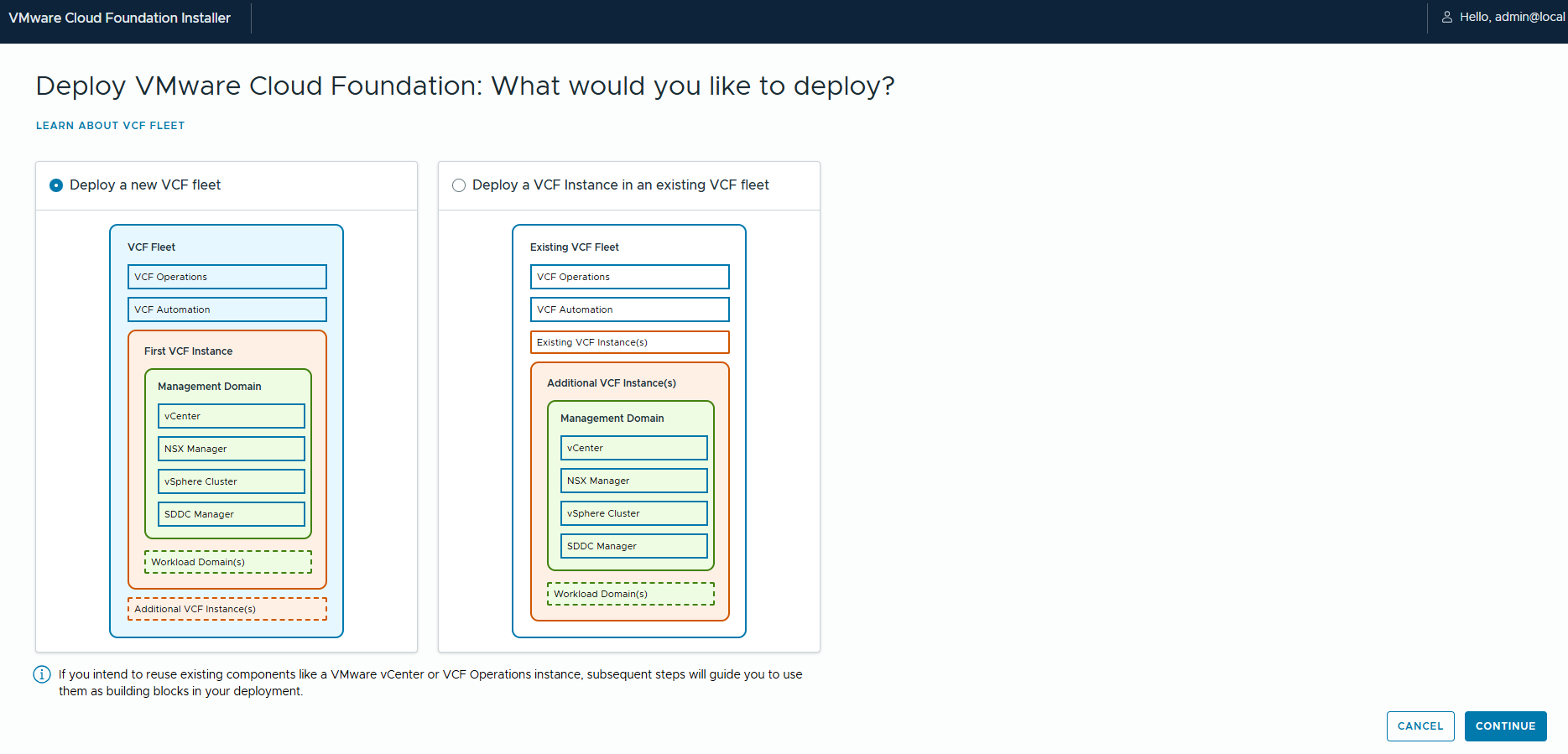
After selecting the option to deploy a new fleet, the wizard displays a helpful diagram explaining the VCF structure and components. Click the “Learn about VCF Fleet” link to analyze it.

Stage 3: Component Configuration – The Step-by-Step Wizard
We now begin a series of configuration steps defining our entire infrastructure.
Step 1: Existing Components
The wizard asks if we want to use any existing components in our environment, such as VCF Operations or vCenter. In a “Greenfield” scenario, we do not select any of these options, so we click NEXT.
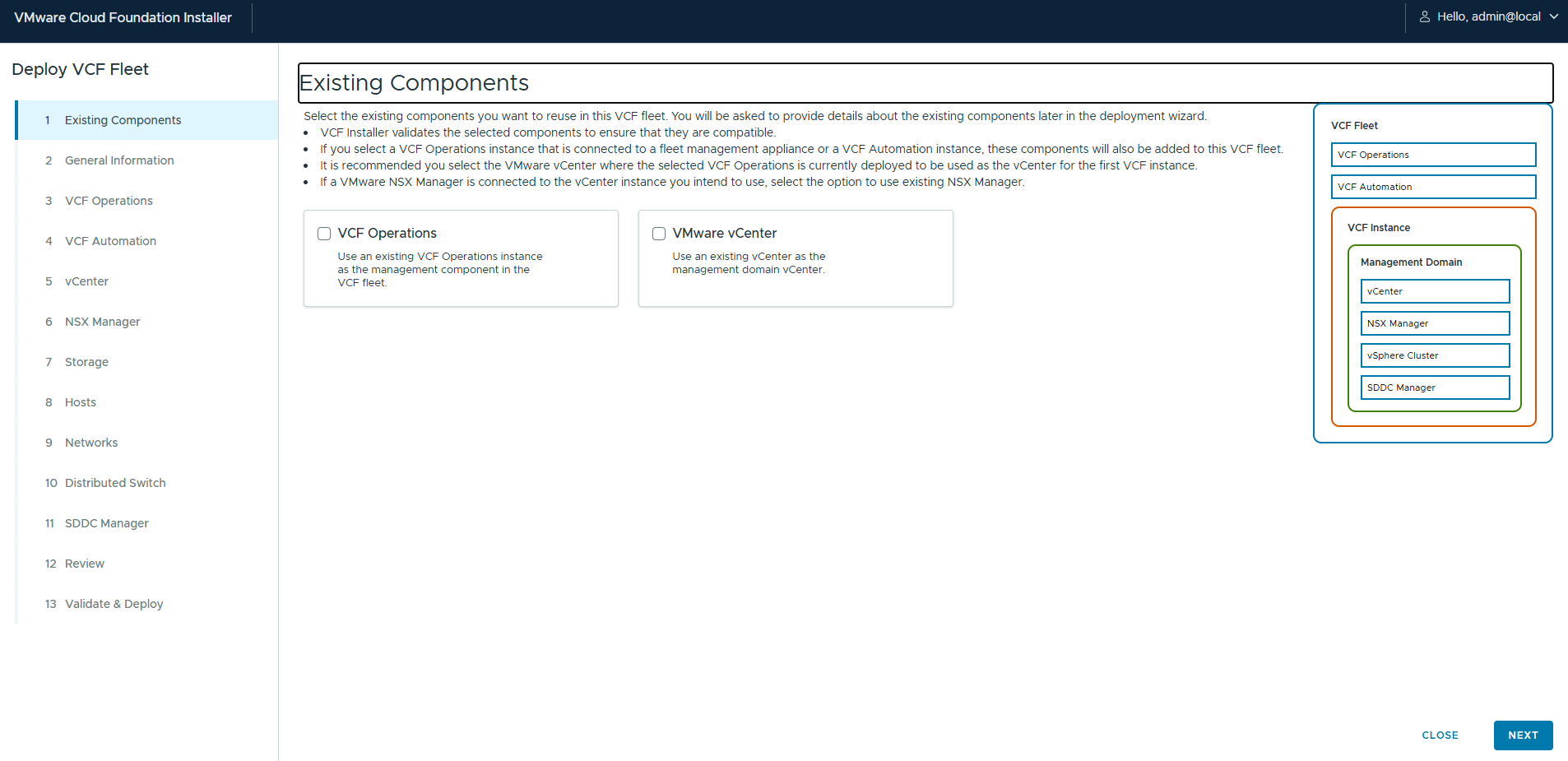
Step 2: General Information
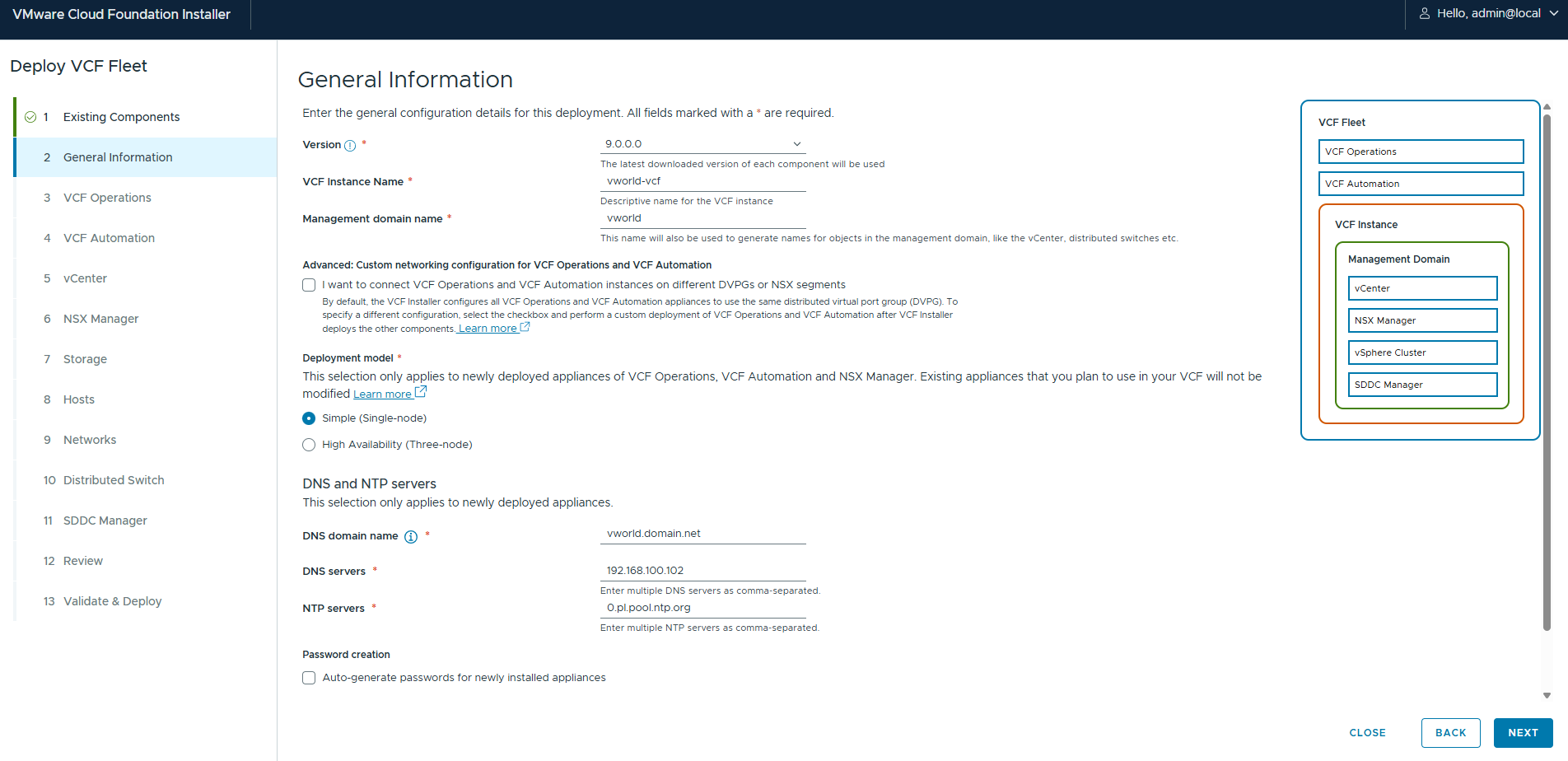
This is the heart of the general configuration. Here, we define the basic parameters of our deployment.
- Version: We select version 9.0.0.0.
- VCF Instance Name: We give our instance a name, e.g.,
vworld-vcf. - Management domain name: We define the name of the management domain, e.g.,
vworld. - Deployment model: We choose between
Simple (Single-node)High Availability (Three-node). For a production environment or an advanced lab, the HA model is recommended. - DNS and NTP servers: We enter the addresses of the DNS and NTP servers, which are crucial for all services to function properly.
- Password creation: Let the installer automatically generate secure passwords or define them manually.
Step 3: VCF Operations
Here, we configure the VCF Operations component.
- Operations Appliance Size: We choose the size of the virtual machine. “Extra Small” is sufficient for a lab.
- Operations primary FQDN: We provide the fully qualified domain name for the primary node.
- Passwords: We set the passwords for the
Administratorand Root Users. - Fleet Management Appliance: We provide the FQDN for this component and can use the same passwords.
- Operations Collector Appliance: Similarly, we define the FQDN and passwords.

Step 4: VCF Automation
Next, we configure VCF Automation.
- Appliance FQDN: The fully qualified domain name for the appliance.
- Passwords: The password for the
Administratoruser. - Node IP 1 / Node IP 2: The IP addresses for the cluster nodes.
- Node name prefix: A prefix for the node names.
- Internal Cluster CIDR: The internal subnet for cluster communication.

Step 5: vCenter
Time for the brain of our virtualization – vCenter Server.
- Appliance FQDN: The FQDN for the vCenter Server Appliance (VCSA).
- Appliance Size: The size of the machine (e.g., “Small” for a lab).
- Datacenter Name / Cluster Name: Logical names for the datacenter and cluster.
- SSO Domain Name: The name of the Single Sign-On domain (e.g.,
vsphere.local). - Passwords: Passwords for the SSO administrator and the
rootuser.

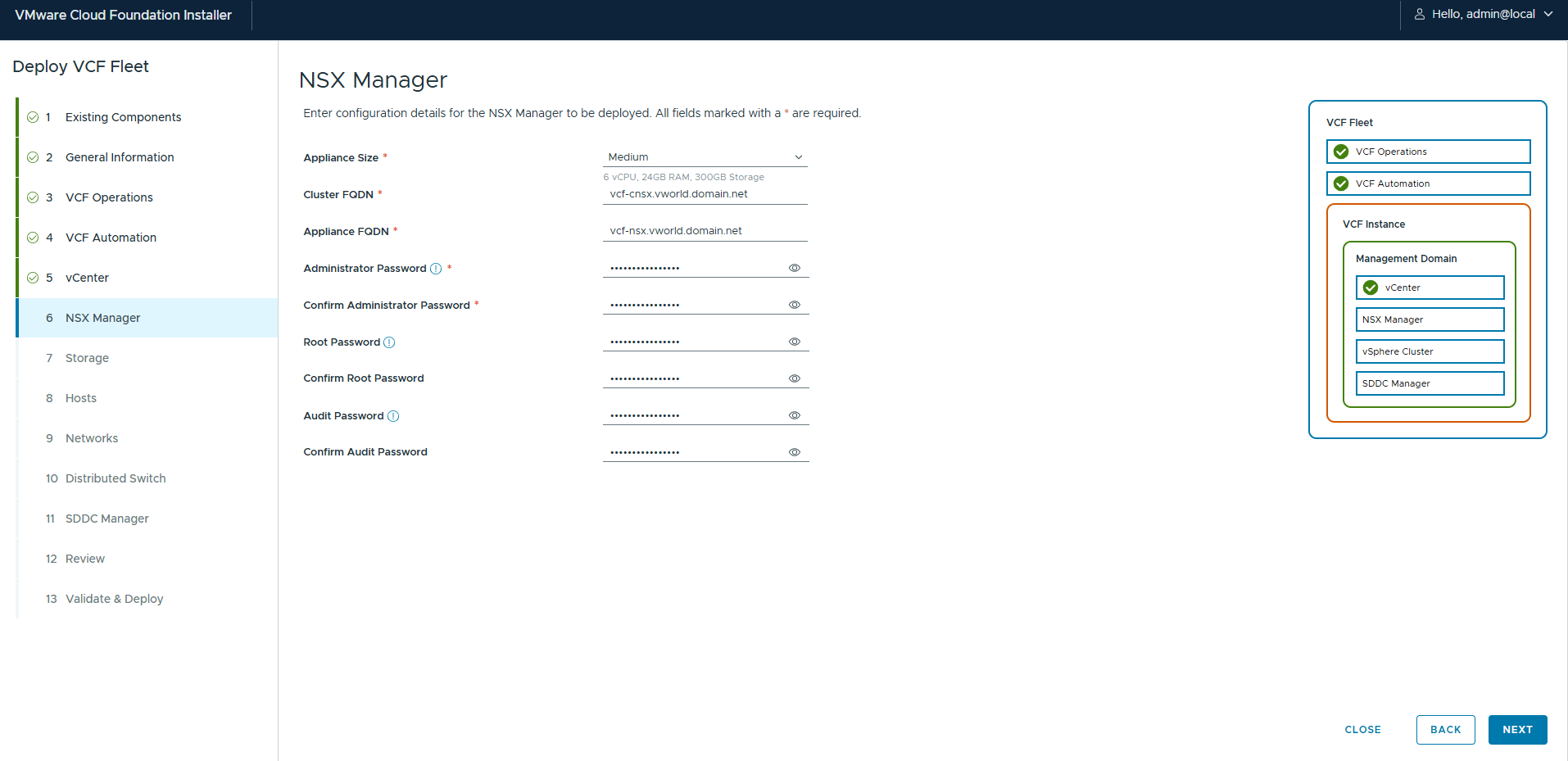
Step 6: NSX Manager
We configure the networking component – NSX.
- Appliance Size: The size of the NSX Manager virtual machines (e.g., “Medium”).
- Cluster FQDN: The FQDN for the cluster (VIP).
- Appliance FQDN: The FQDN for the first manager node.
- Passwords: We define passwords for the
Administrator,RootAndAuditusers.
Step 7: Storage
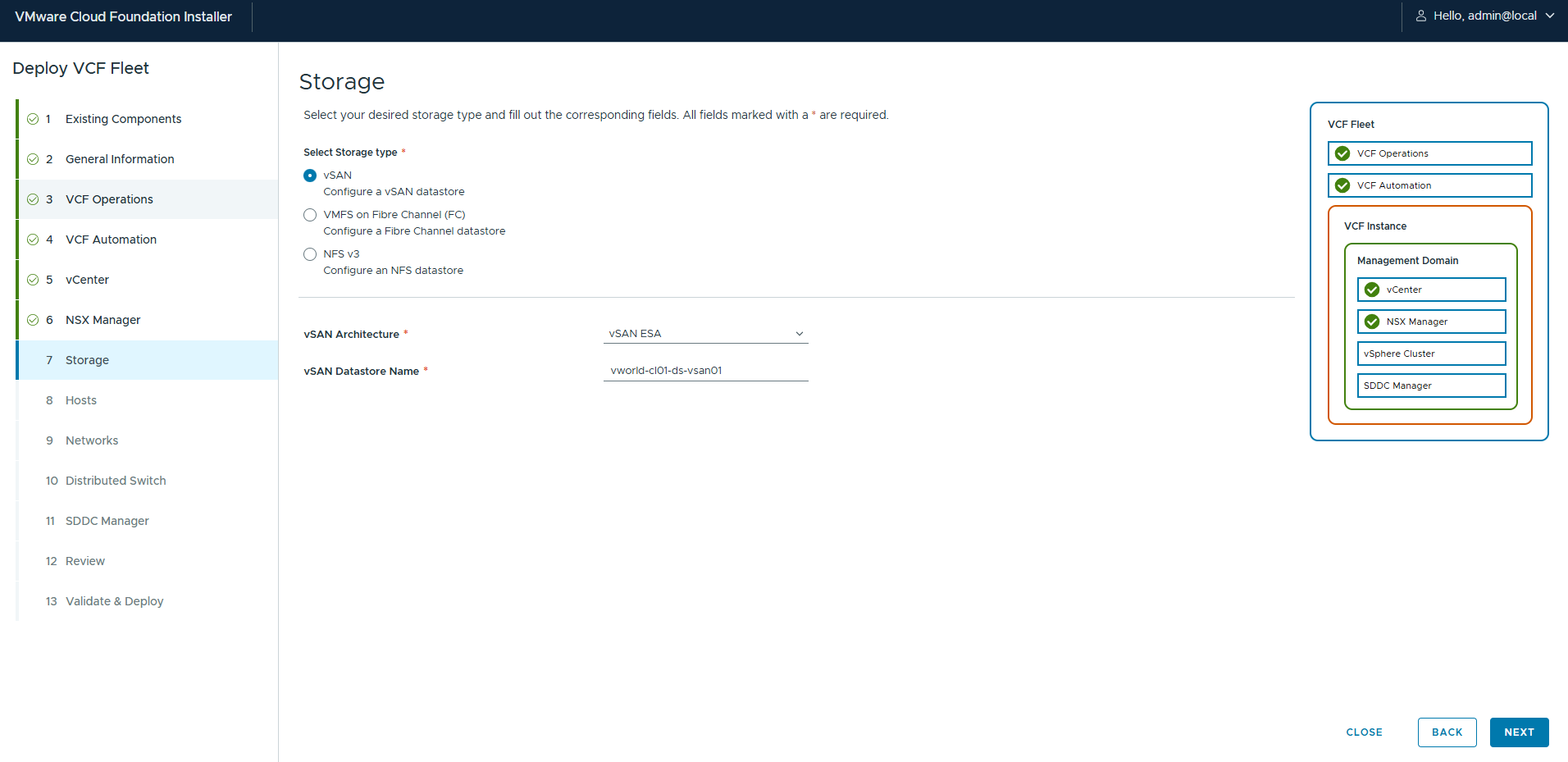
We select and configure storage. VCF 9.0 supports vSAN, VMFS on FC, and NFS v3. In our example, we choose vSAN with the latest vSAN ESA (Express Storage Architecture), which offers a significant performance boost. We also provide a name for our vSAN datastore.
Step 8: Hosts
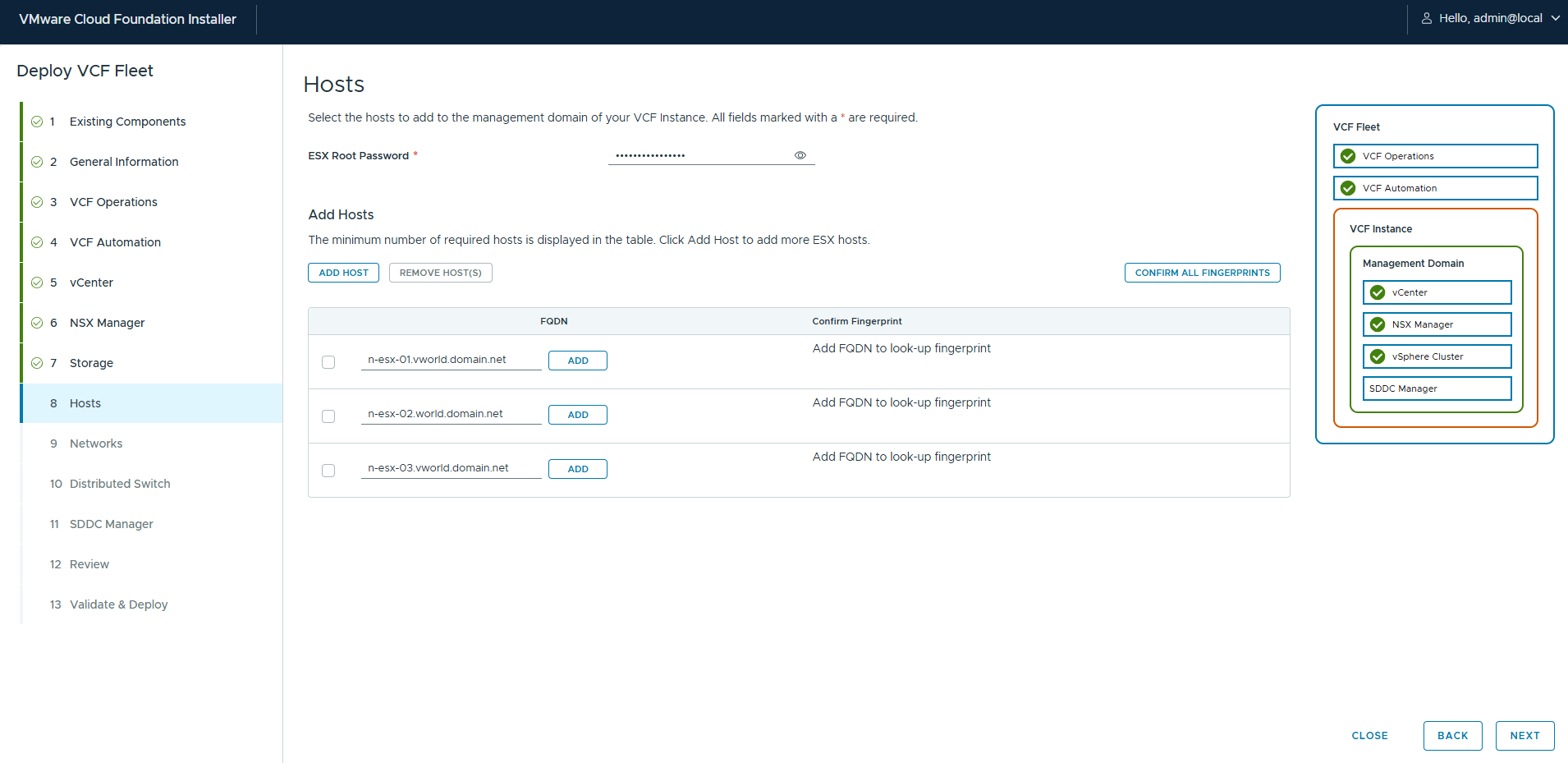
We add the physical servers (ESXi hosts) to form our management domain.
- We enter the root password for the ESXi hosts.
- We click ADD HOST and enter the FQDN of each host.
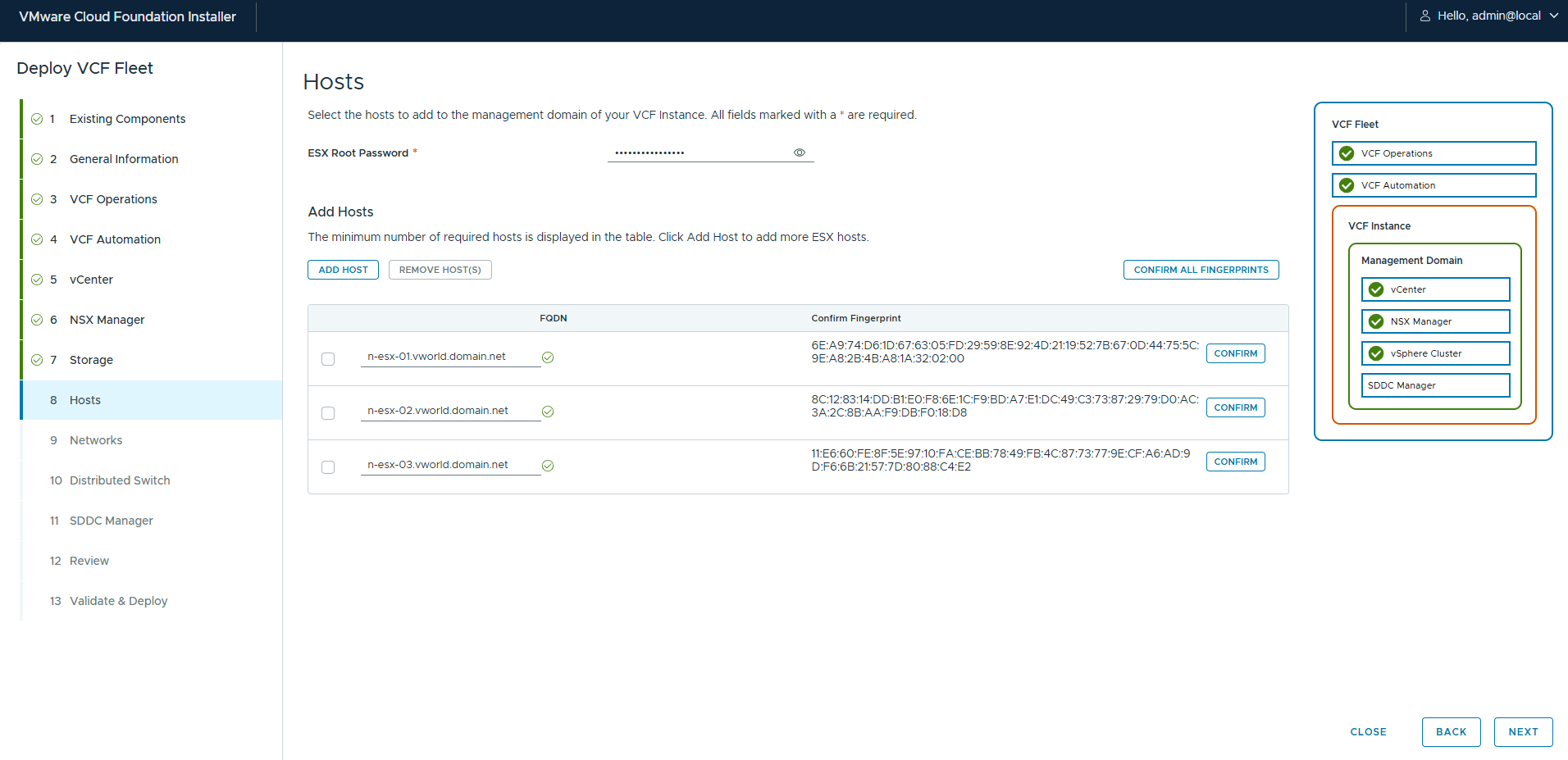
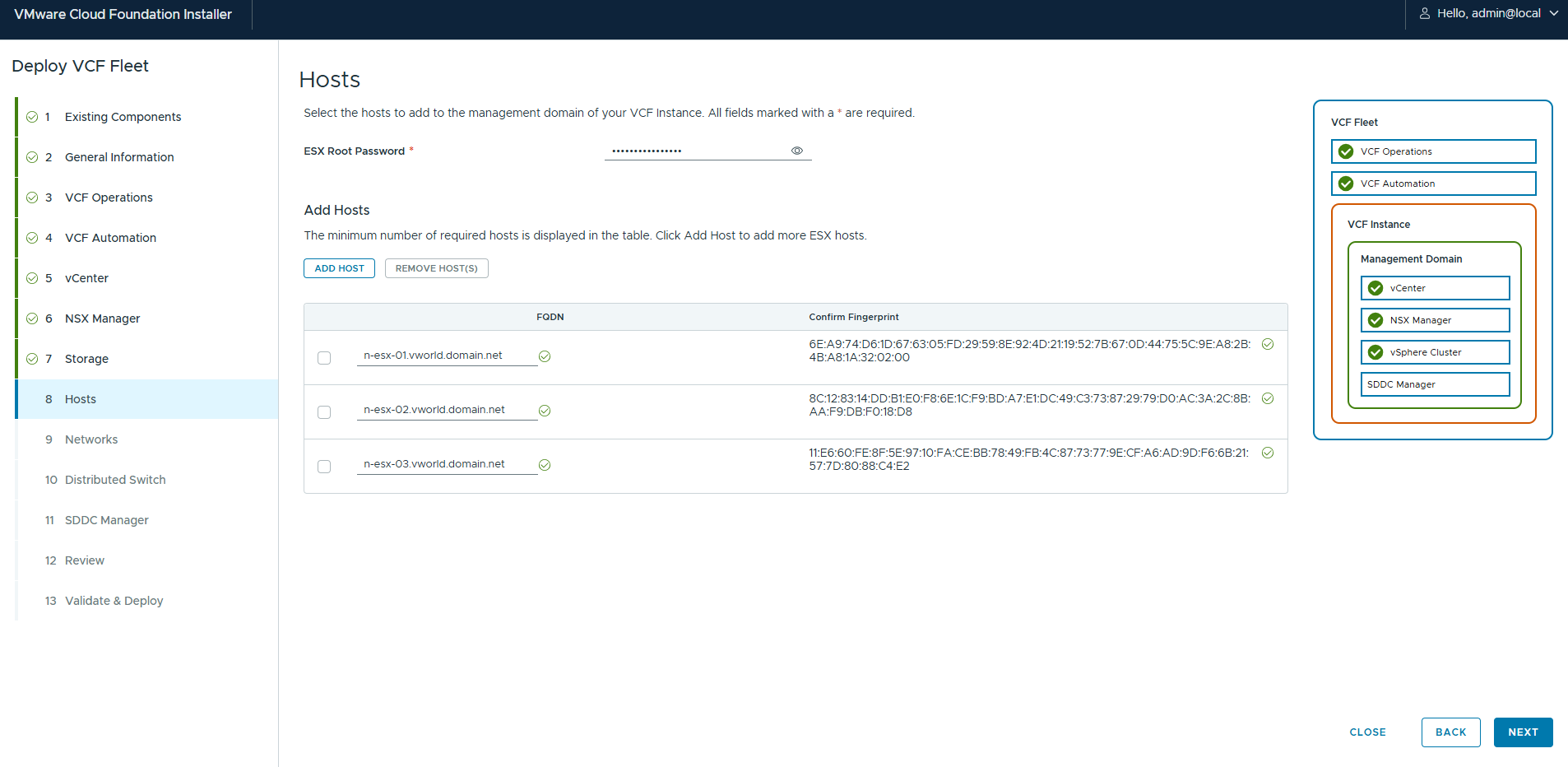
- The installer will retrieve each host’s SSL fingerprints. We must verify and confirm them by clicking CONFIRM next to each one.
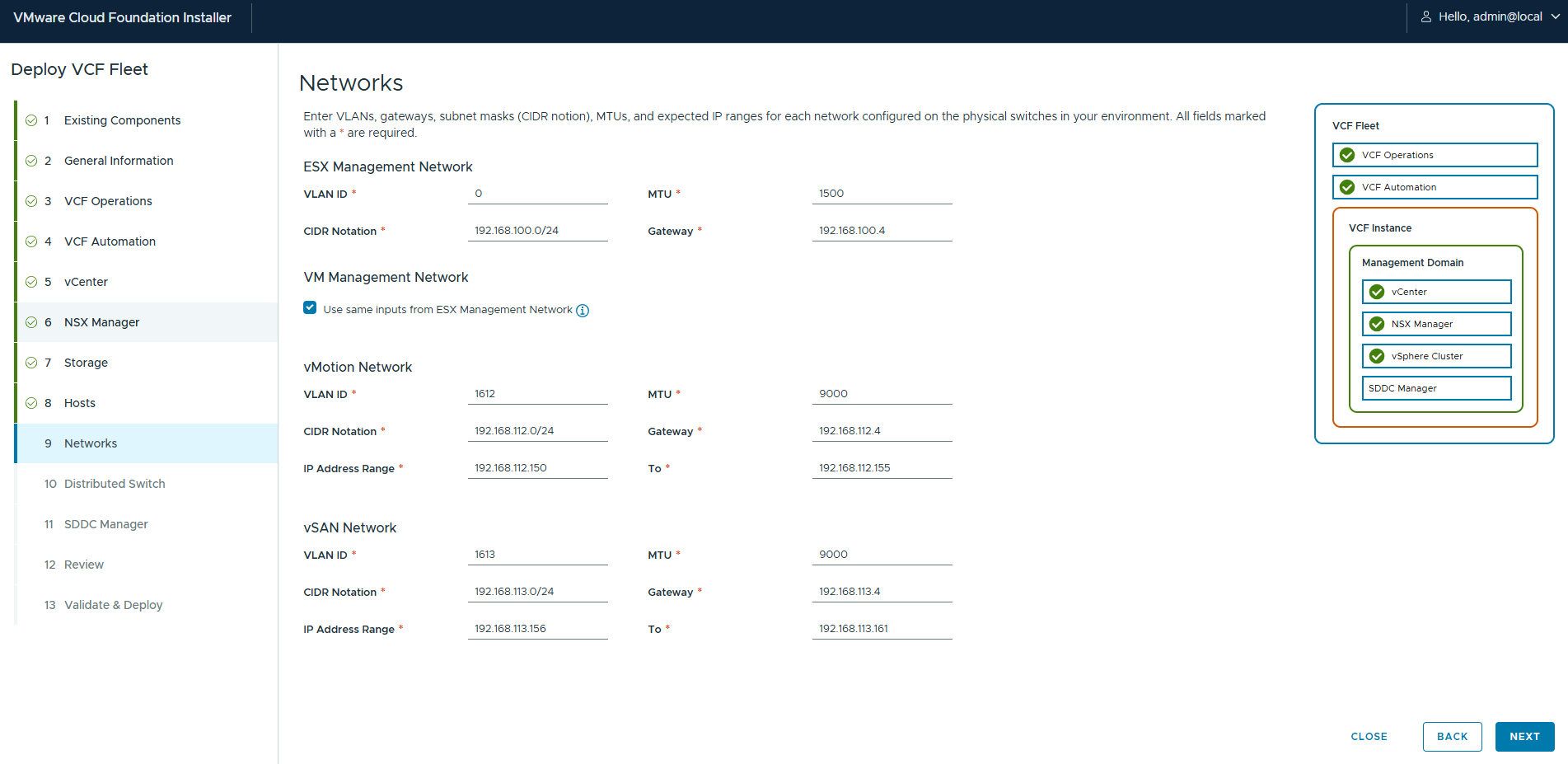
Step 9: Networks
This is one of the most critical stages – network configuration. Here, we define the individual VLANs and subnets for different types of traffic:
- ESX Management Network: The network for managing hosts.
- VM Management Network: The network for managing virtual machines (we can use the same settings as the host management network).
- vMotion Network: The network for live migration of virtual machines. It requires an MTU of 9000 (Jumbo Frames).
- vSAN Network: A dedicated network for vSAN traffic, also with an MTU of 9000.
For each network, we provide the VLAN ID, CIDR notation, gateway, and IP ranges (for vMotion and vSAN).
Step 10: Distributed Switch
VCF automatically creates vSphere Distributed Switches. We have several predefined topology profiles to choose from, which help optimize network traffic.
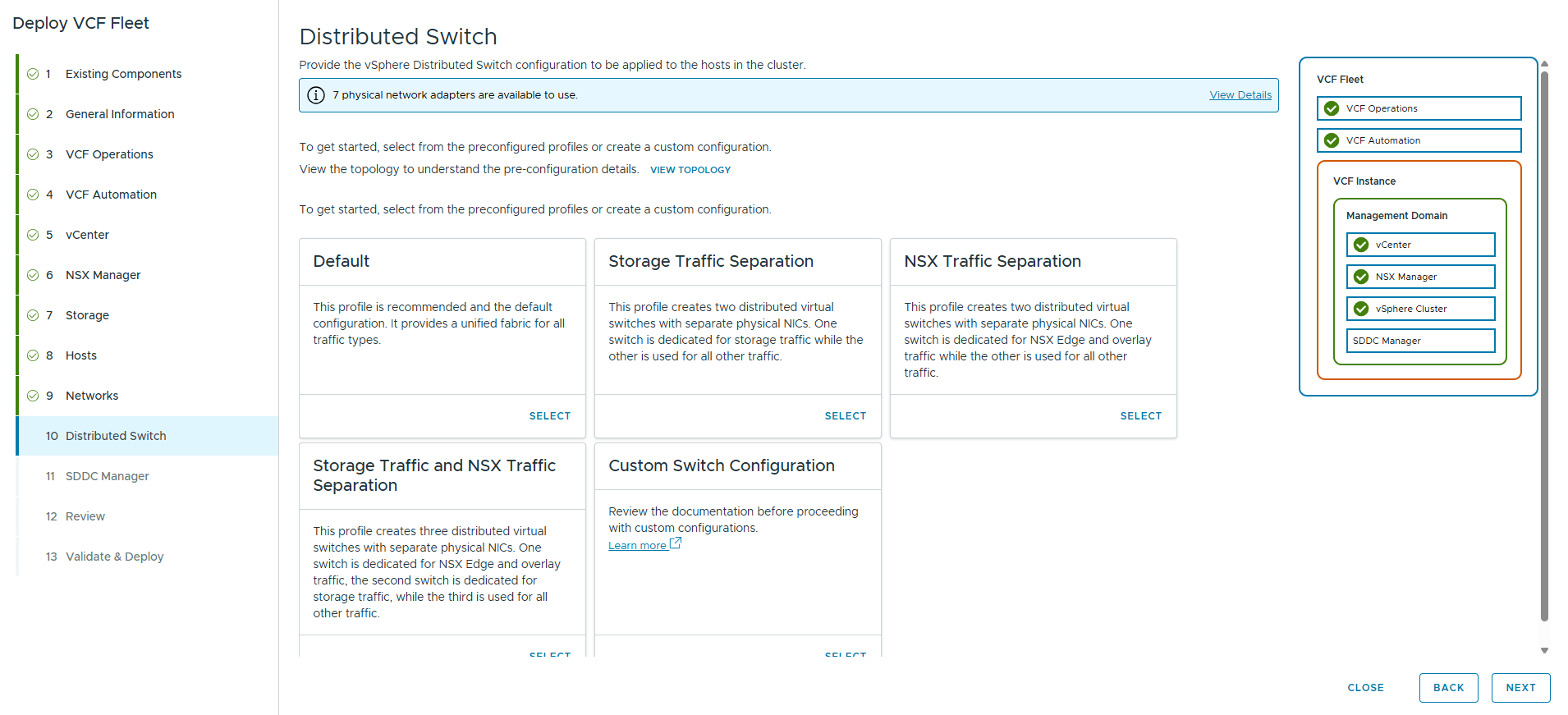
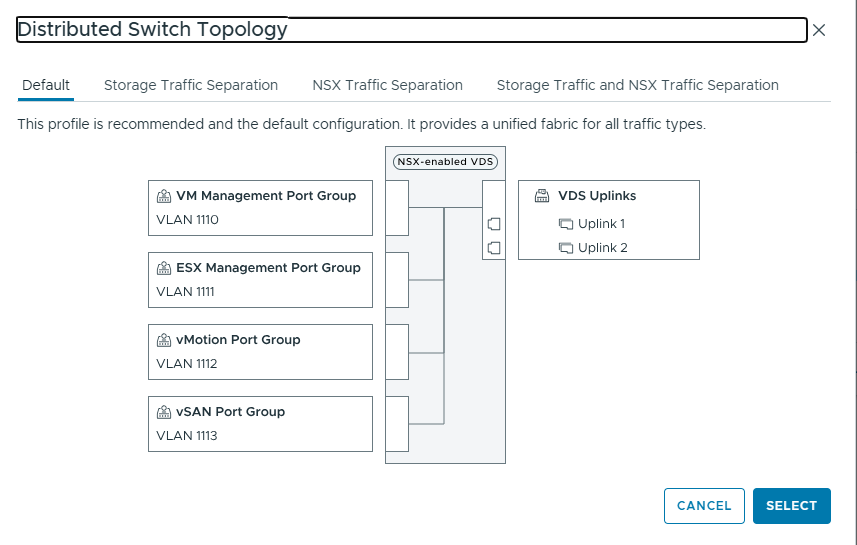
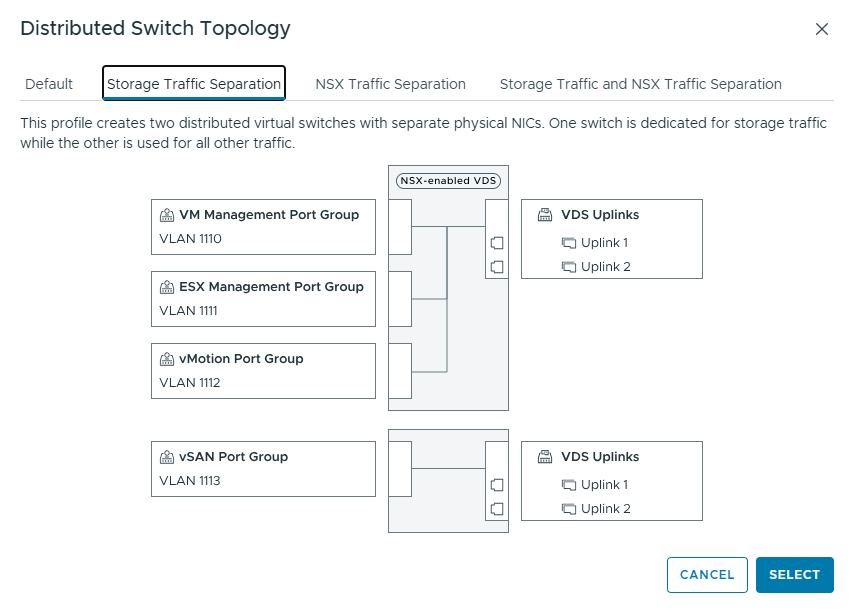
We can preview each topology:
- Default: One VDS for all traffic.
- Storage Traffic Separation: Two VDSs, one for storage traffic.
- NSX Traffic Separation: Two VDSs, one for NSX traffic.
- Storage Traffic and NSX Traffic Separation: Three VDSs for complete separation.

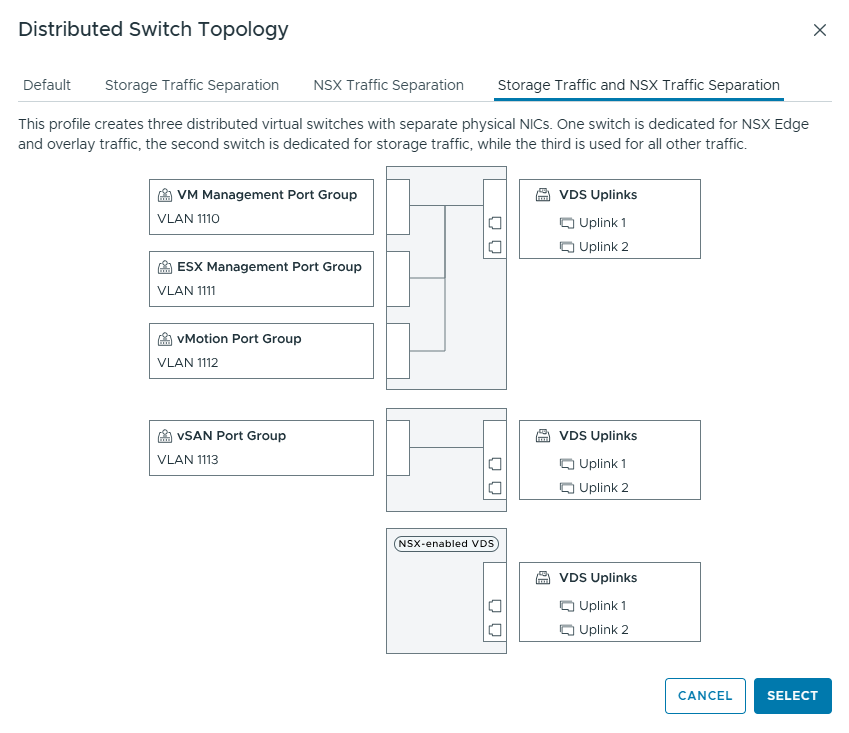
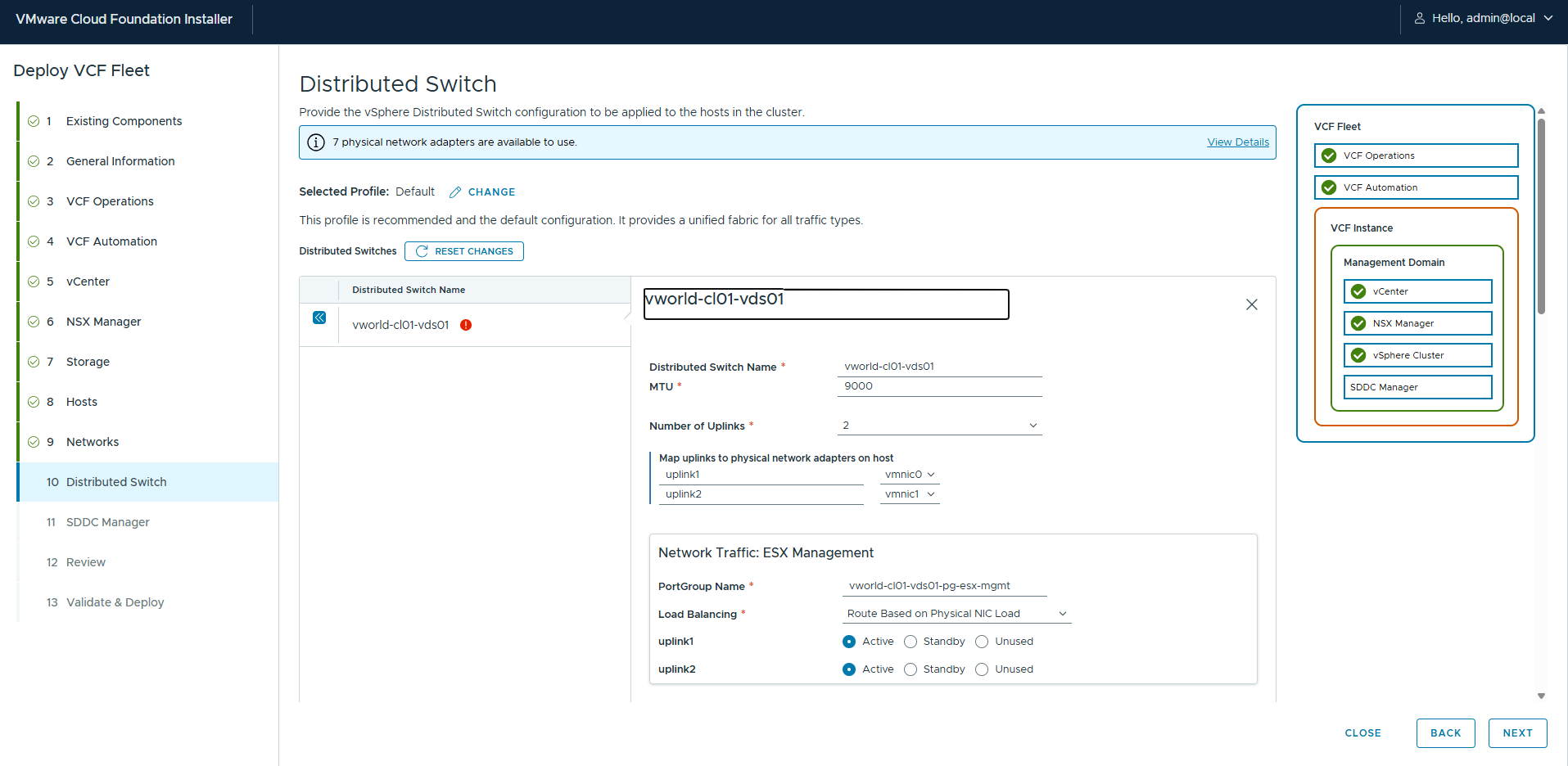
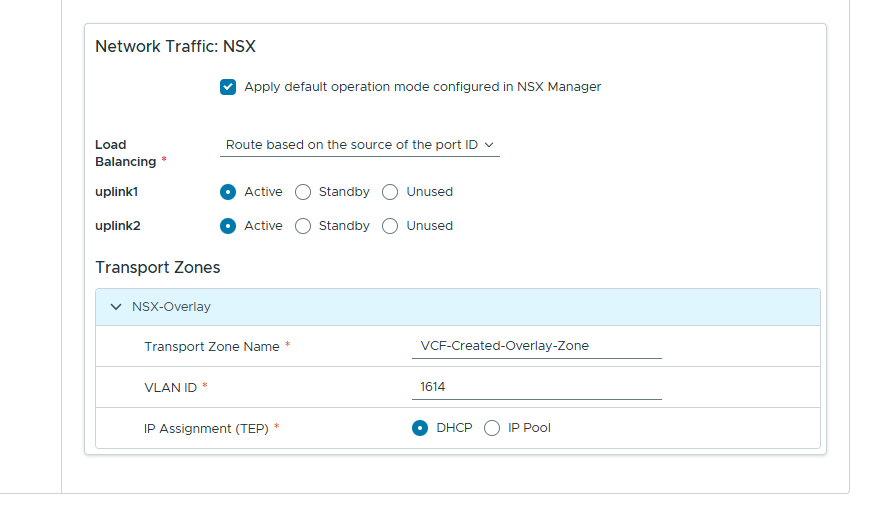
In our scenario, we select the Default profile. The wizard then allows for detailed configuration, including mapping physical network cards (VMNICS) to the distributed switch uplinks.
Step 11: SDDC Manager
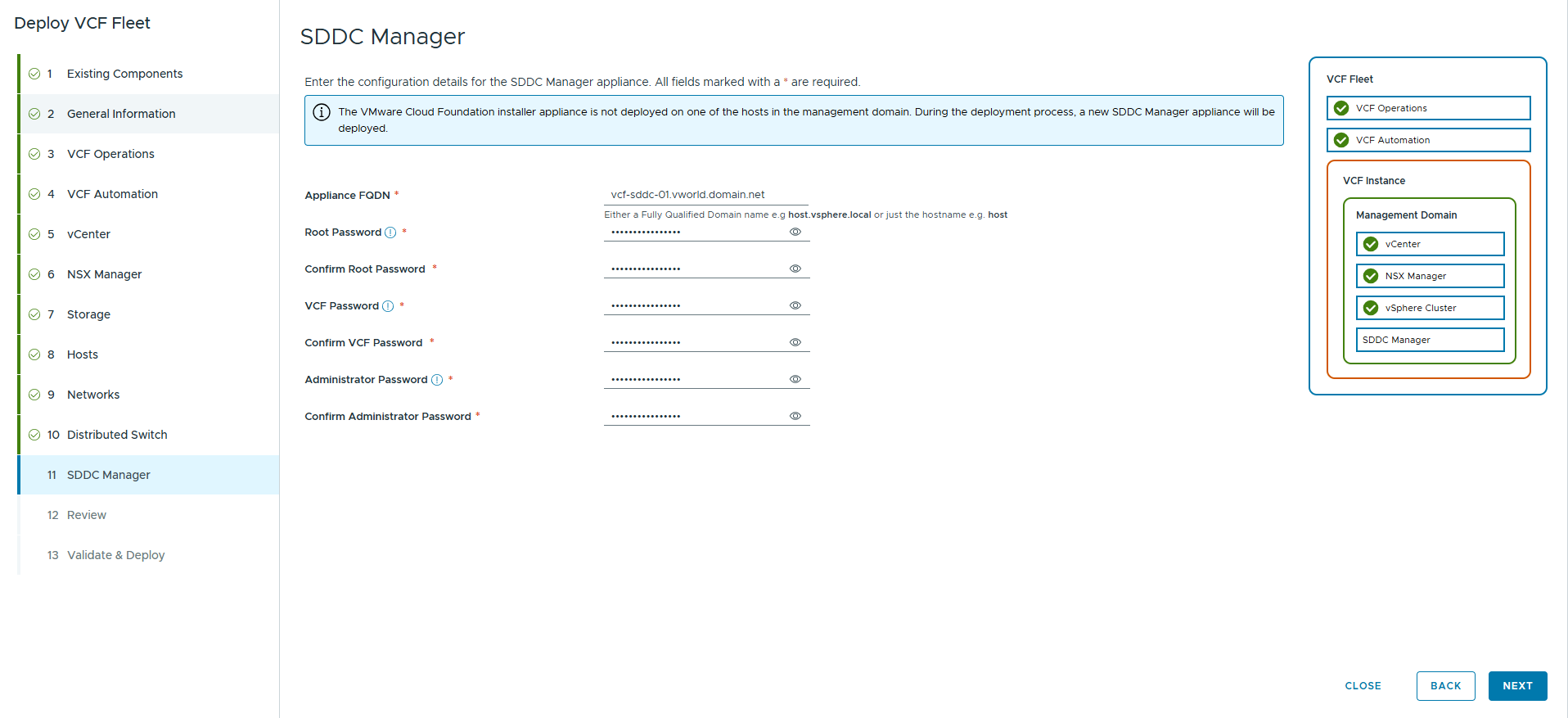
We configure the SDDC Manager virtual machine, which will manage the lifecycle of our cloud. We provide its FQDN and passwords.
Stage 4: Review, Validation, and Deployment
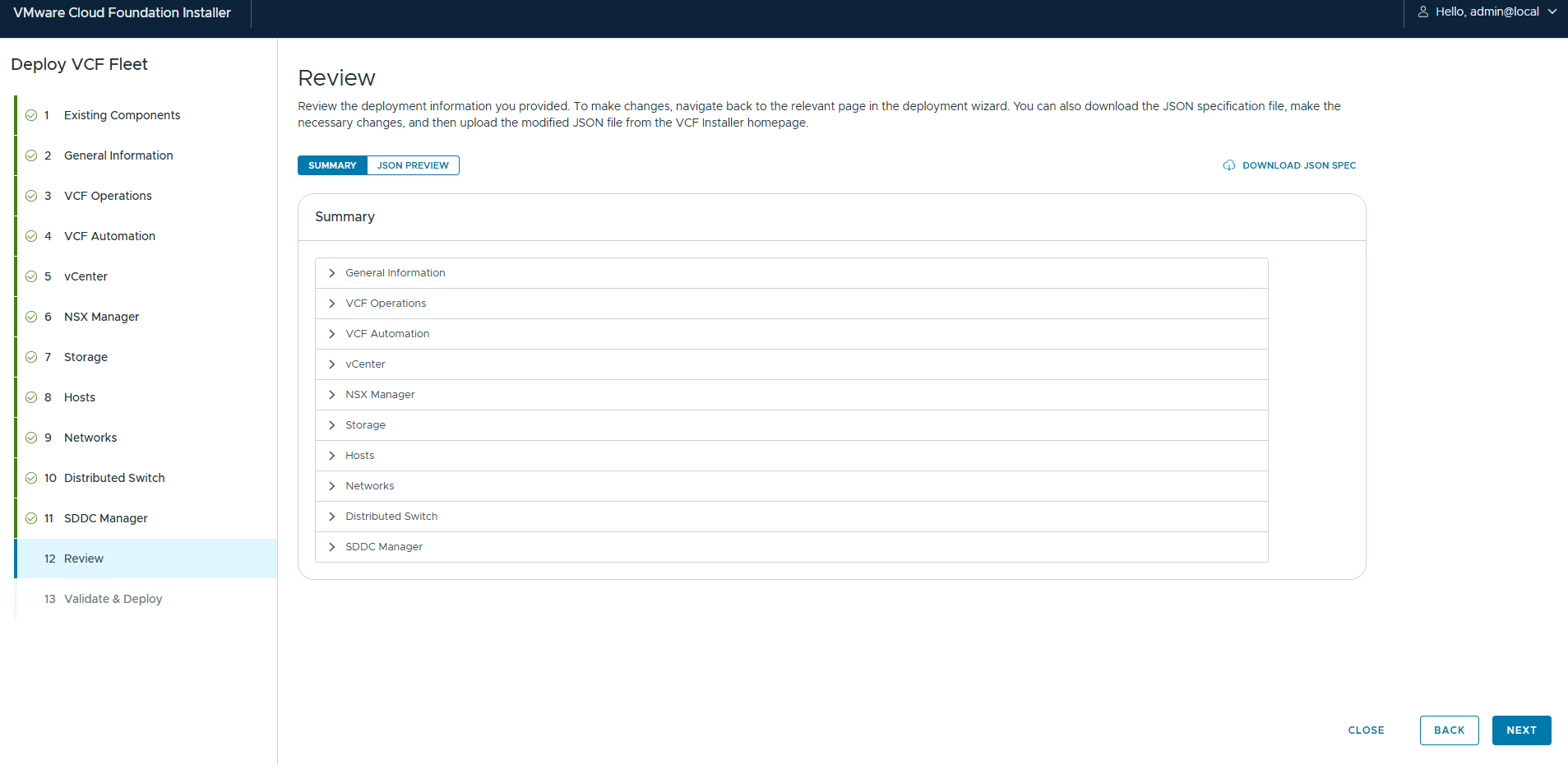
Step 12: Review
We have reached the end of the wizard. The “Review” step presents a complete configuration summary in collapsible sections. This is the last chance to double-check everything. From here, we can also download the JSON SPEC file, a machine-readable representation of our configuration. We can use it to automate future deployments.
Step 13: Validate & Deploy
The final step is validation and deployment. After clicking DEPLOY, the installer will begin a series of validation tests, checking network connectivity, DNS configuration correctness, hardware compatibility, and more.
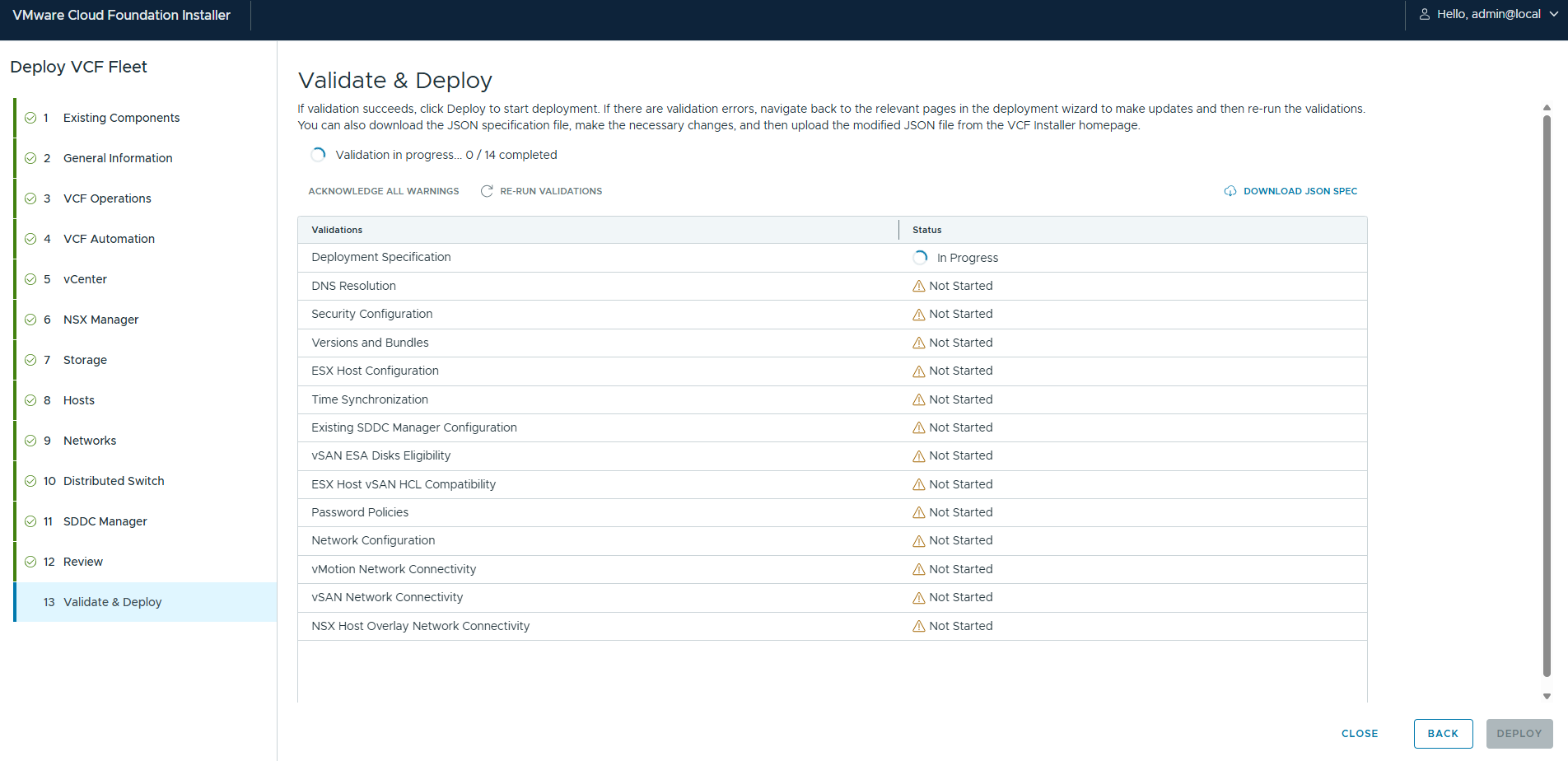
If all tests pass successfully, the actual deployment process will begin. It is fully automated and can take several hours.
Conclusion
Thanks to the new installer and a well-thought-out wizard, installing VMware Cloud Foundation 9.0 has become a logical and orderly process despite its complexity. Going through each step allows you to build a solid, integrated foundation for a private cloud that is efficient and secure and ready for rapid scaling and adaptation to changing business needs. We hope this detailed guide makes taking your first steps into VCF 9.0 easier.
wat hardware are you using brother?
PowerEdge R740xd
Intel(R) Xeon(R) Gold 6248 x2
Memory 1536 GB
Great, this is first blog that I saw for installation vcf 9. Thanks.
Great article! What are min system requirements for installing VCF 9.0?
I have three nested hosts
24CPU
256 RAM
40GB – OS
50/500/500 vSAN
In my case I need to deploy DC1 – Site A with one VCF instance contains management domain and workload domain and DC2- Site B with another VCF instance contains management domain and workload domain with VMware Live Recovery configured active active.
Q: Should i Install DC1 with first option install new VCF instance and DC2 with second option existing VCF addition? or should i need to install separate VCF instance.
Q: How to configure VMware Live Recovery of Disaster Recovery configuration between both sites or DCs.
Q: I also have to migrate VMs from old on-prem vcenter 7 to this new VCF 9 environment, should i need to use HCX or its possible with vsan and what about VM hardware compatibility and CPU family, kindly suggest?
Hi,
Can we assign static IP for NSX node and edge Node.
for edge node we are assigning static ip based on DNS